
Mac and iPhone apps · Flashforge Adventurer 5M
Deck
A native control deck for your 3D printer, on your Mac and your iPhone. Watch every print live, keep your models in one library, and slice and send them to the printer without leaving the app.
Features
Everything on one deck
From picking a model to the "print finished" notification, PrintDeck covers the whole job in one window.
Now printing
Watch the print, not a spinner
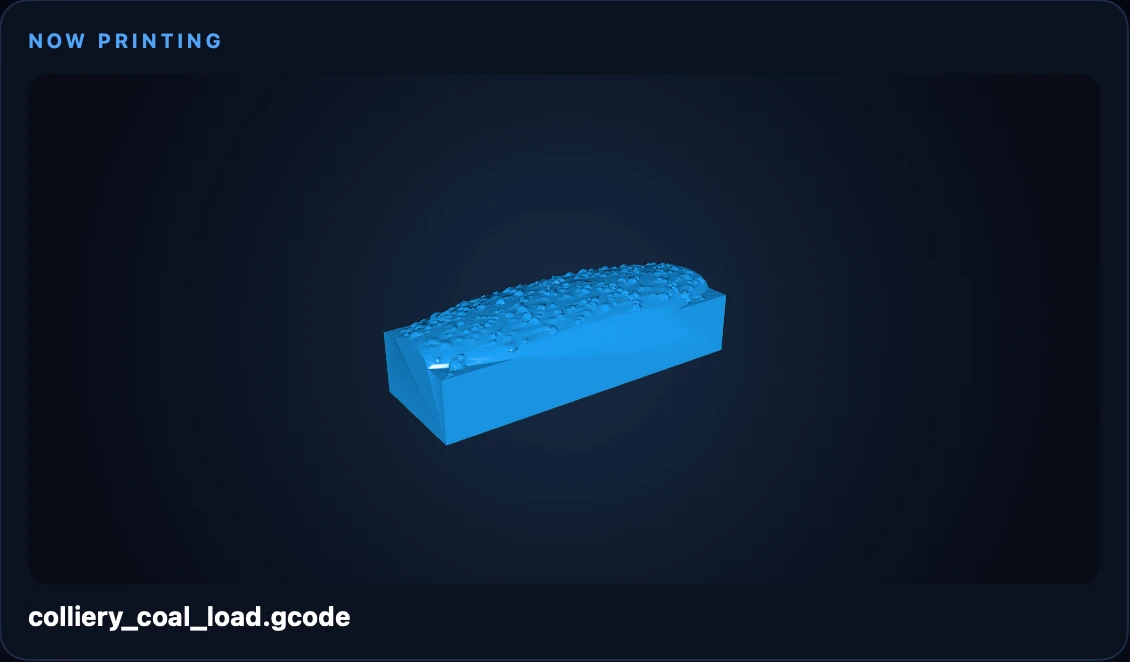
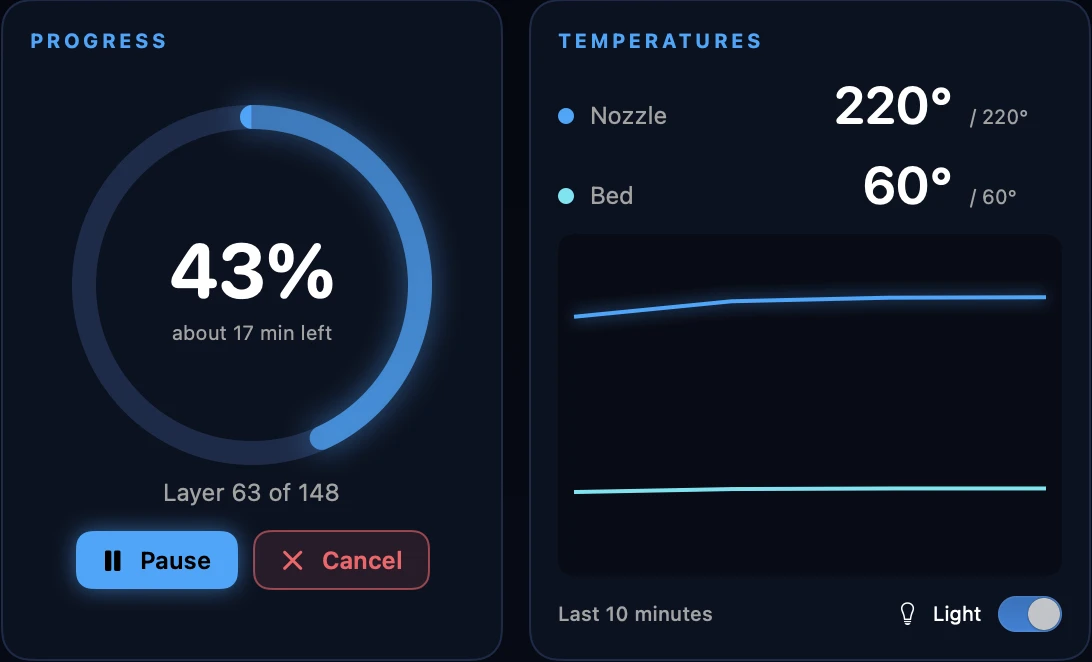
The model being printed is shown in 3D, with the progress ring, time left and current layer next to it.
- Pause, resume and cancel from the Mac
- Nozzle and bed temperatures with a 10-minute chart
- Switch the printer's light on and off
- A Mac notification when a print finishes or stops
Model library
Your models, kept in one place
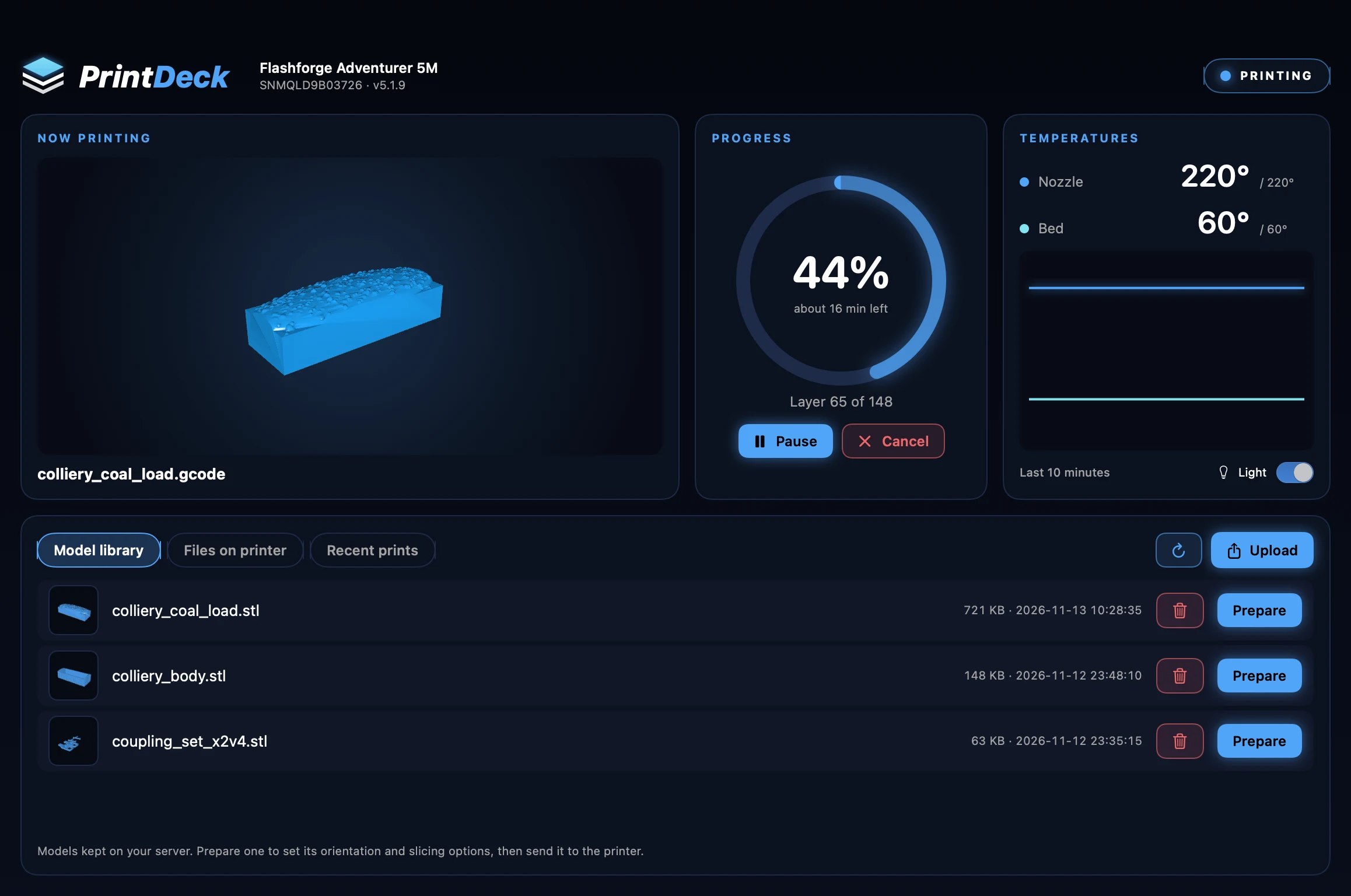
Drop STL, OBJ or STEP files on PrintDeck and they're stored in a library on your own server, with a 3D thumbnail for each.
- Models stay in the library after printing, ready to print again
- Upload from any Mac on the network
- Already-sliced files go straight to the printer
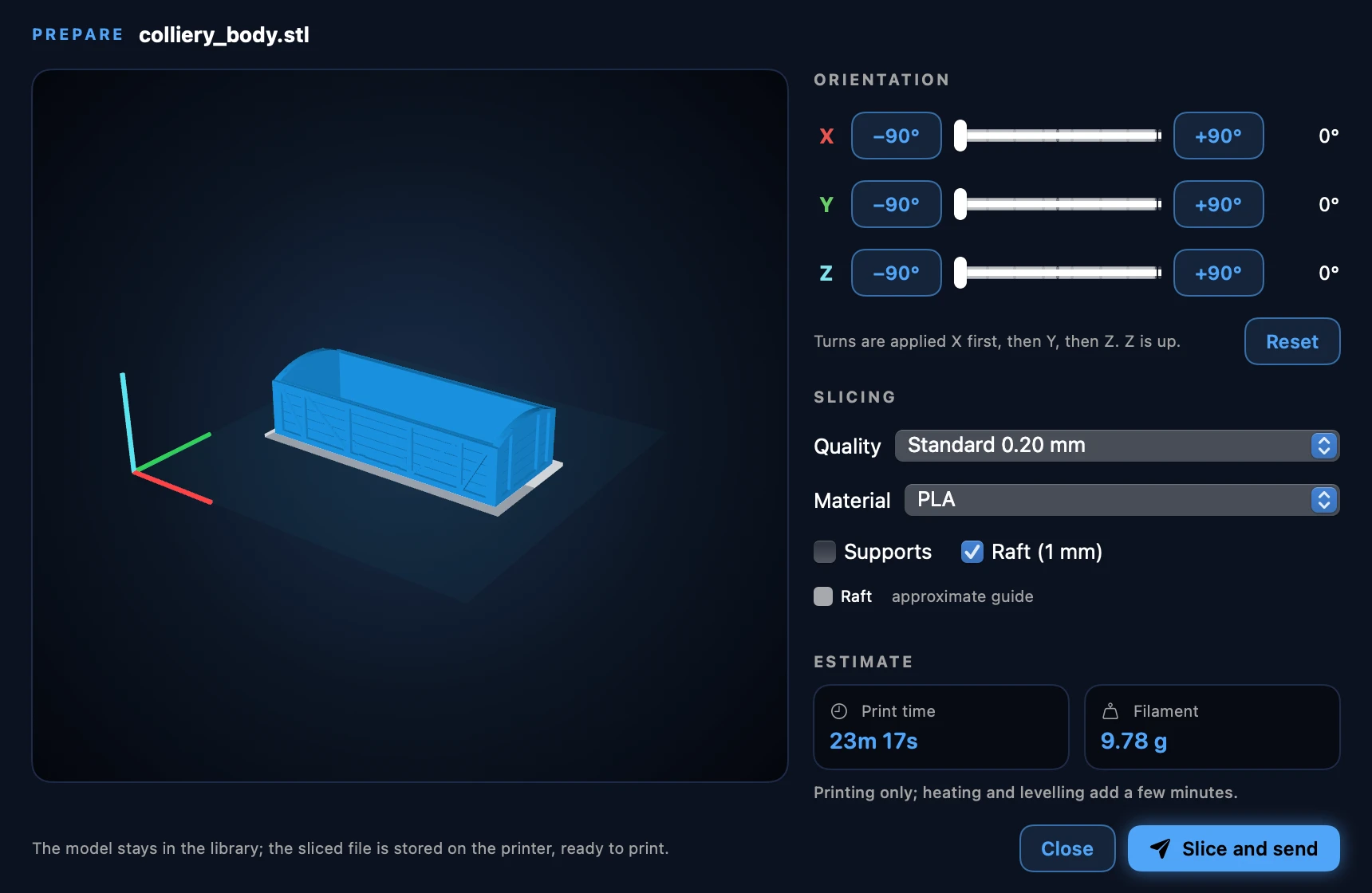
Prepare
Orient, choose, slice and send
Turn the model on the build plate in 90° steps or by the degree, then pick how it should print. A guide shows where supports and the raft will go, and the estimate updates as you change settings.
- Quality from Detail to Draft 0.24 mm
- PLA or PETG, using Flashforge's own profiles
- Normal or tree supports, and an optional raft
- Print time and filament estimate before you commit
- Slice and send in one click. The printer is ready to go.
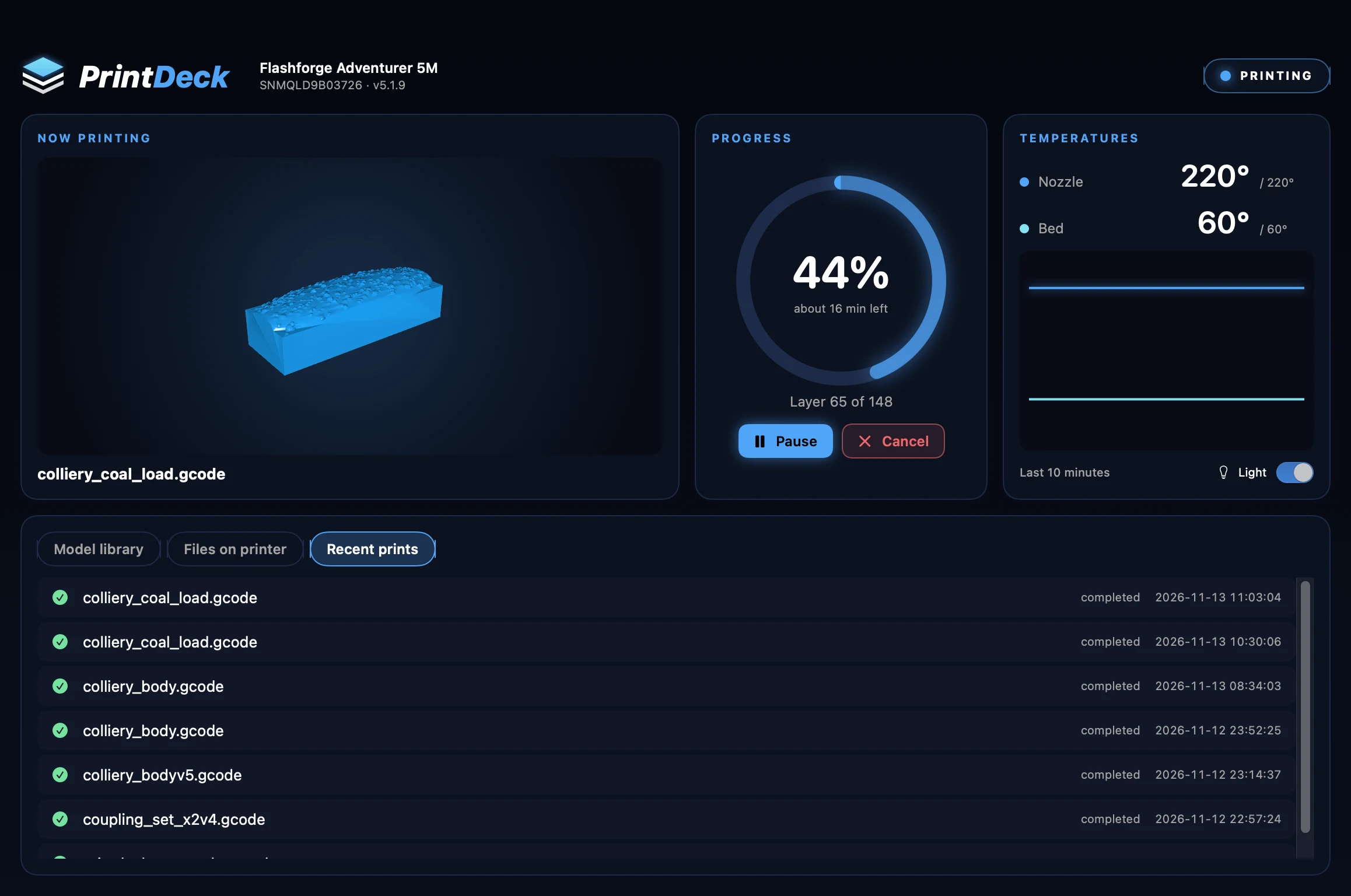
Recent prints
A record of every print
Each print is logged on your server as it starts and finishes, so the history is still there after a restart.
- See at a glance which prints finished and which didn't
- Start time for every job
- Kept in a database on your server, not in the cloud
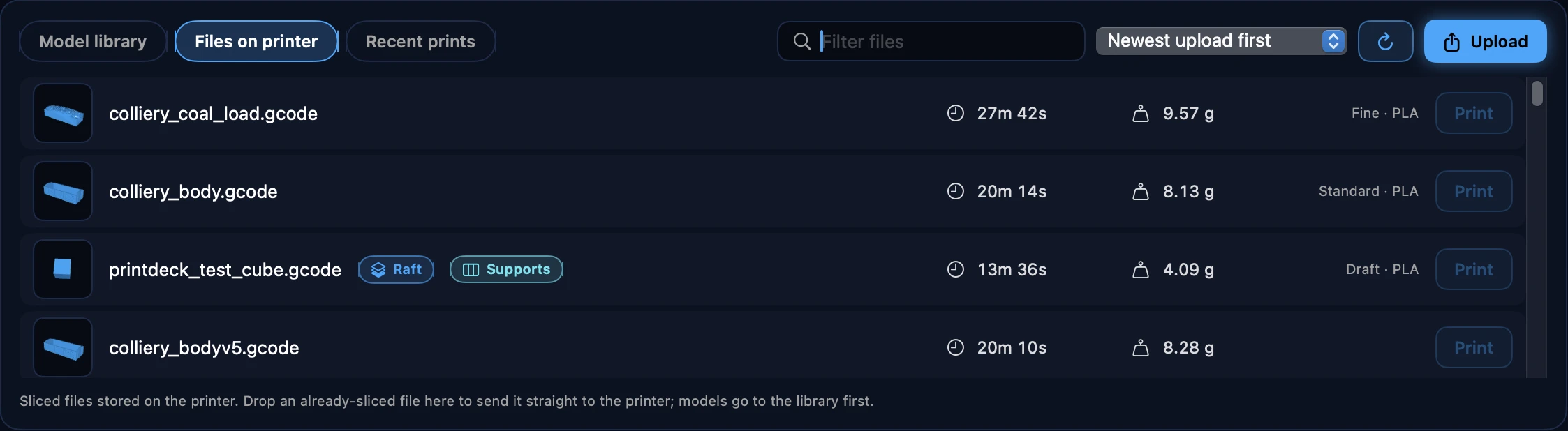
Files on printer
Know what's on the printer
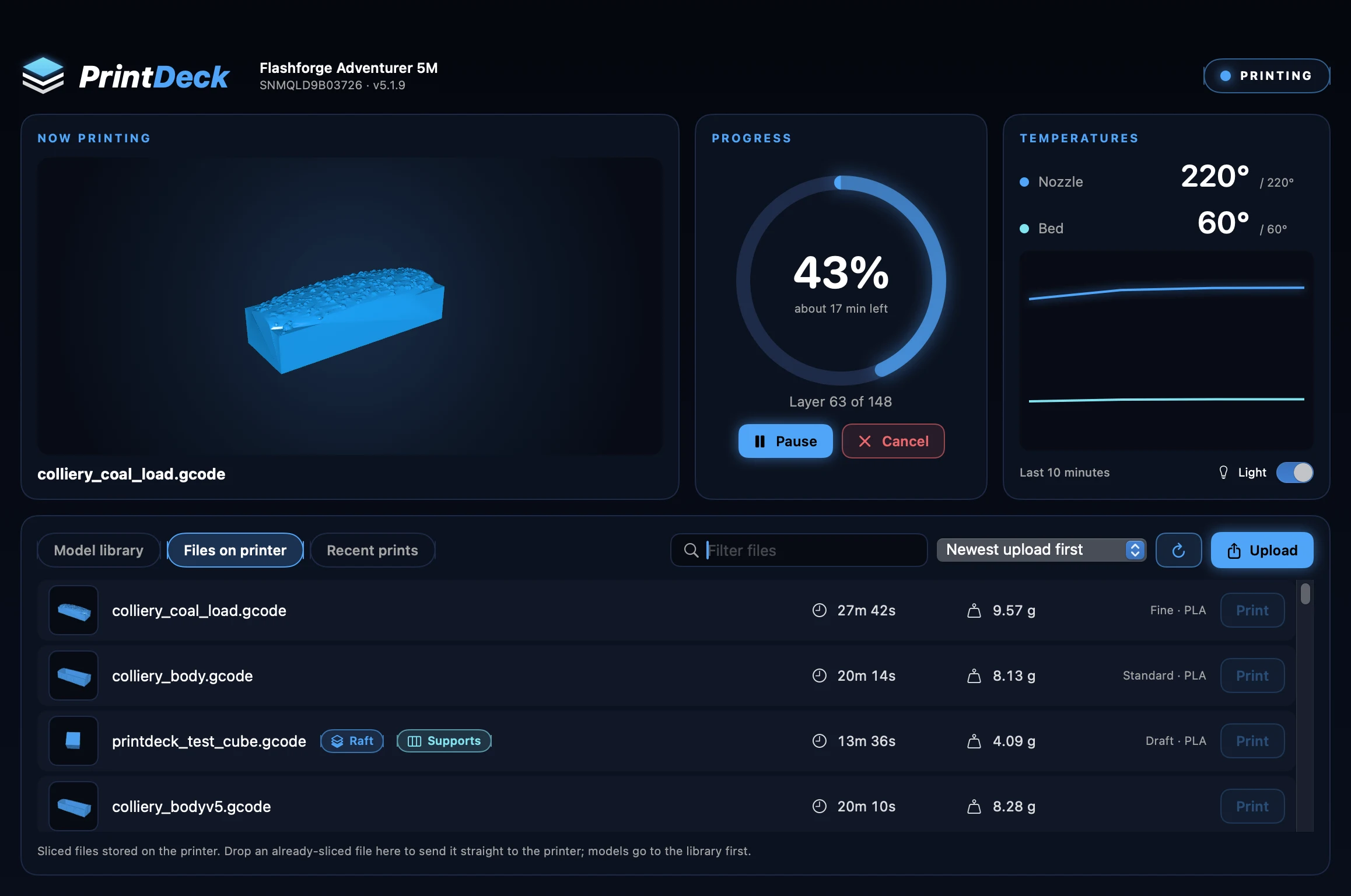
Every sliced file stored on the printer, with a preview, its print time and filament weight, and the settings it was sliced with, so you can tell a draft from a finished part at a glance.
On iPhone
The same deck, in your pocket
PrintDeck for iPhone talks to the same bridge as the Mac app, so the model library, the files on the printer and the print history are the same on both.
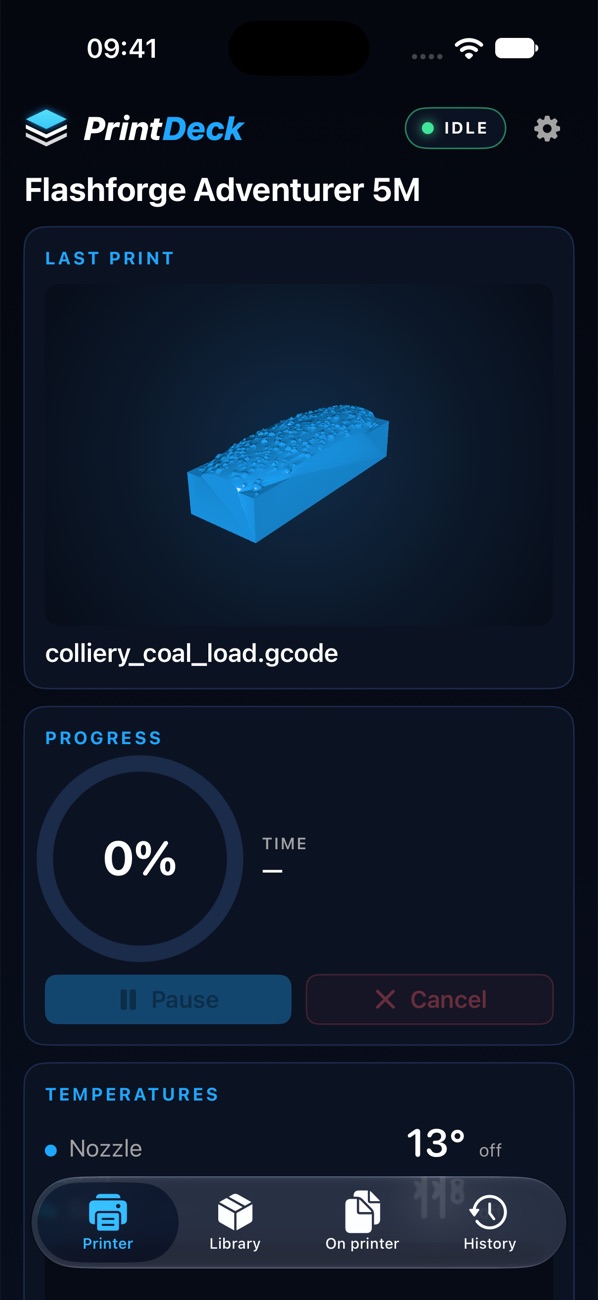
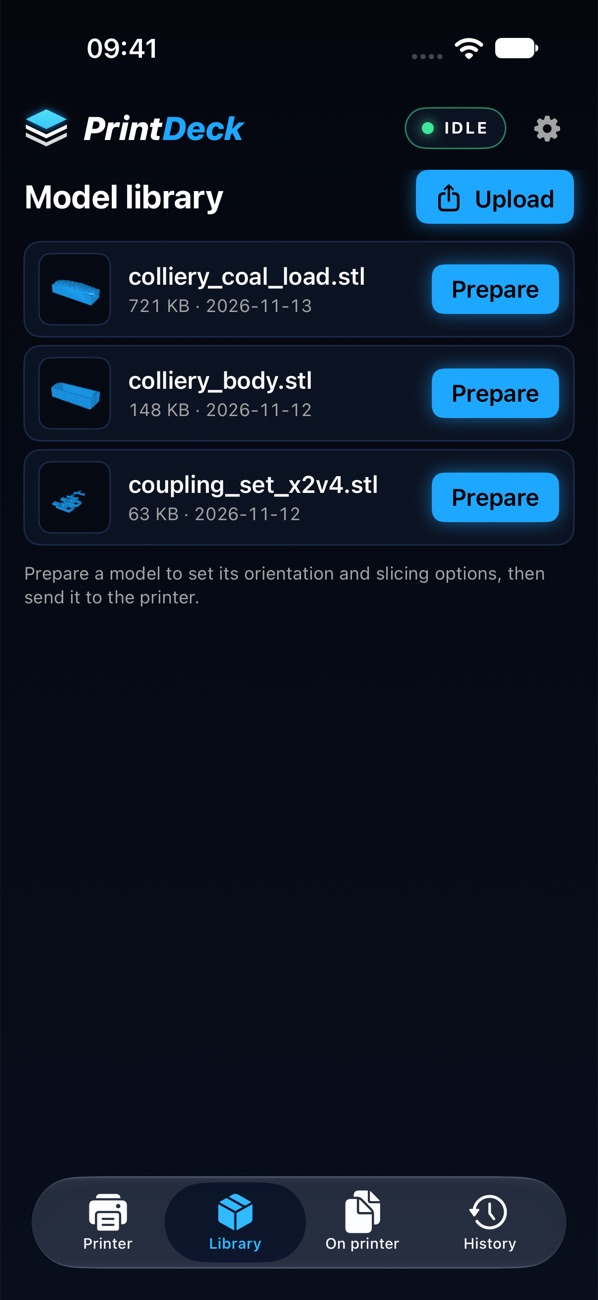
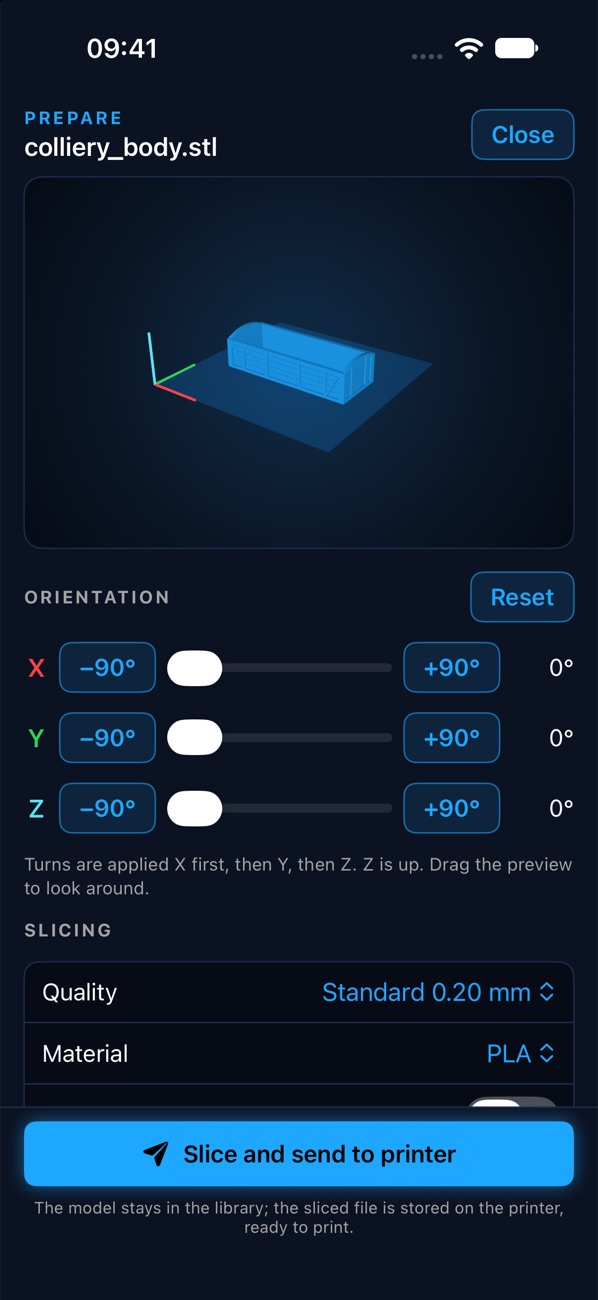
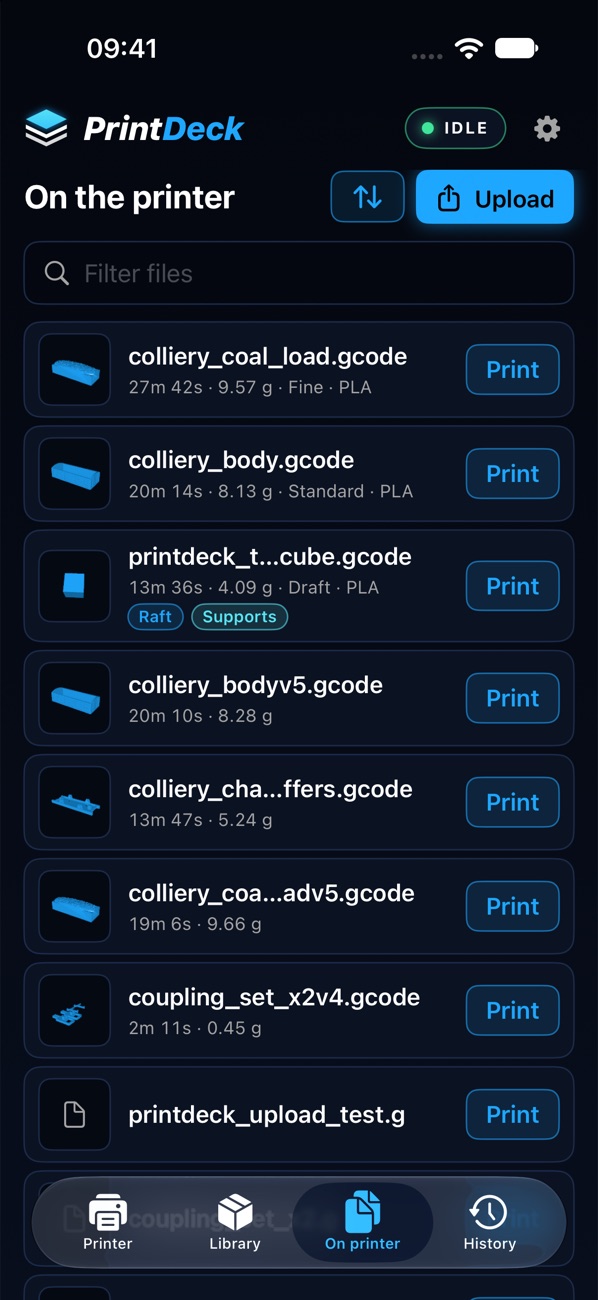
The iPhone app works on your home network, the same as the Mac app. It shows live status while it's open; it doesn't send notifications yet.
How it works
App, server, printer.
A small bridge service on a home server does the heavy lifting, so the apps stay light and slicing doesn't tie up your laptop or phone.
PrintDeck
What you use, on the Mac or the iPhone: live status, the library, Prepare and the files on the printer. Both are built natively in Swift.
Bridge
Keeps the model library, slices and estimates with OrcaSlicer using Flashforge profiles, and records print history in a database.
Adventurer 5M
Receives sliced files and commands over the printer's local network connection. No vendor account needed.
Privacy
Your prints stay home.
PrintDeck talks only to your own server and your own printer. Nothing goes through a vendor's cloud.
- No account, no sign-in, no analytics
- Models and history live on your own server
- Works when the internet is down
In the lab
PrintDeck is in development.
It runs the printer in the SMF workshop every day. If you have an Adventurer 5M and want to try it, get in touch.